Deadly Days: Roadtrip Demo Save Transfer: Steam Deck & PC
Deadly Days: Roadtrip demo save transfer help for Windows and Steam Deck: find your files, back up progress, and follow the older manual import workaround.
Jump to
Does Demo Progress Carry Over to the Full Game?
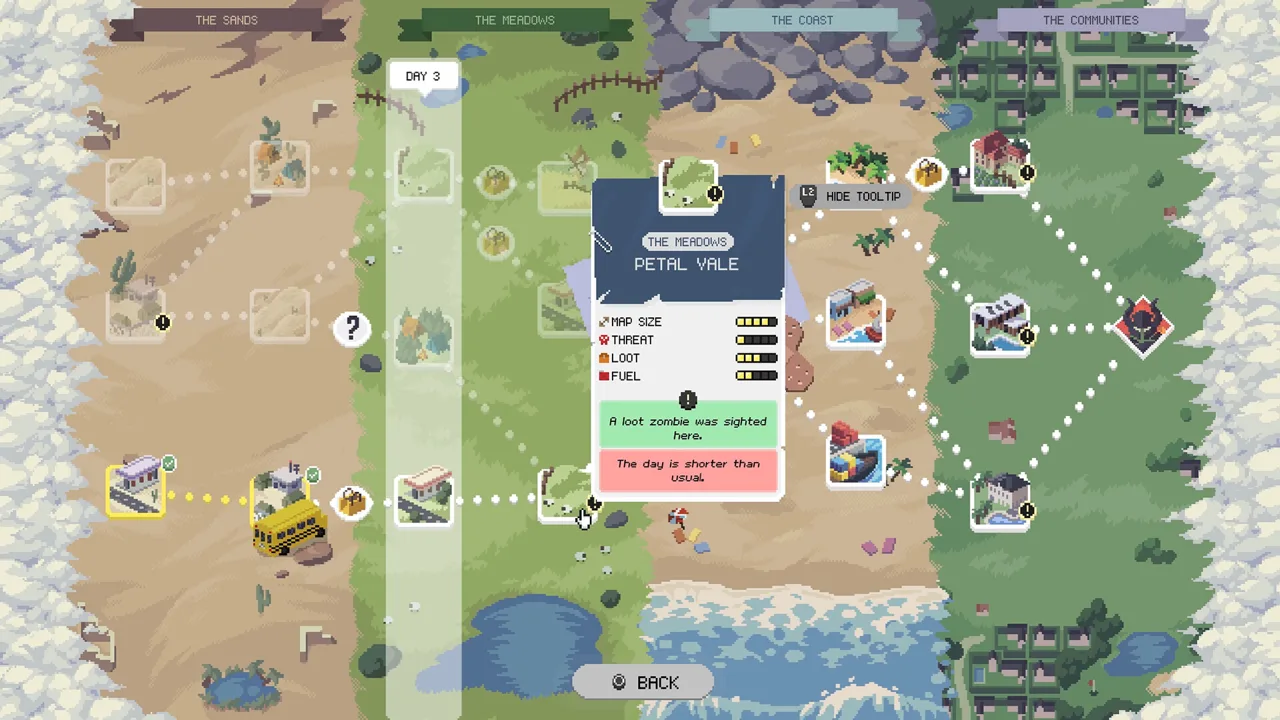
Deadly Days: Roadtrip demo save transfer can preserve your upgrades and survivor unlocks, but results differed at the September 2025 Early Access launch. Back up your files before attempting a manual import so those hard-earned unlocks stay protected. If you already carried your progress into Early Access, version 1.0 supports those existing saves.
These are two separate transitions:
| Save transition | What to expect |
|---|---|
| Demo to Early Access, September 22, 2025 | Automatic transfer worked in some cases; others had missing characters, currency, or older progress. |
| Existing Early Access save to version 1.0, October 29, 2026 | Existing saves remain compatible. Multiple achievements can unlock when you first load your save. |
The manual Steam Deck and Linux procedure below dates to the September 2025 launch. Keep that version context in mind before applying it to an older demo save.
Official page: Deadly Days: Roadtrip (store.steampowered.com)
Find and Back Up Your Save Files
Close the demo and full game before copying anything. Back up the entire Saved folder, keeping the demo backup separate from the full game's backup. Copy files rather than moving them so the originals remain available.
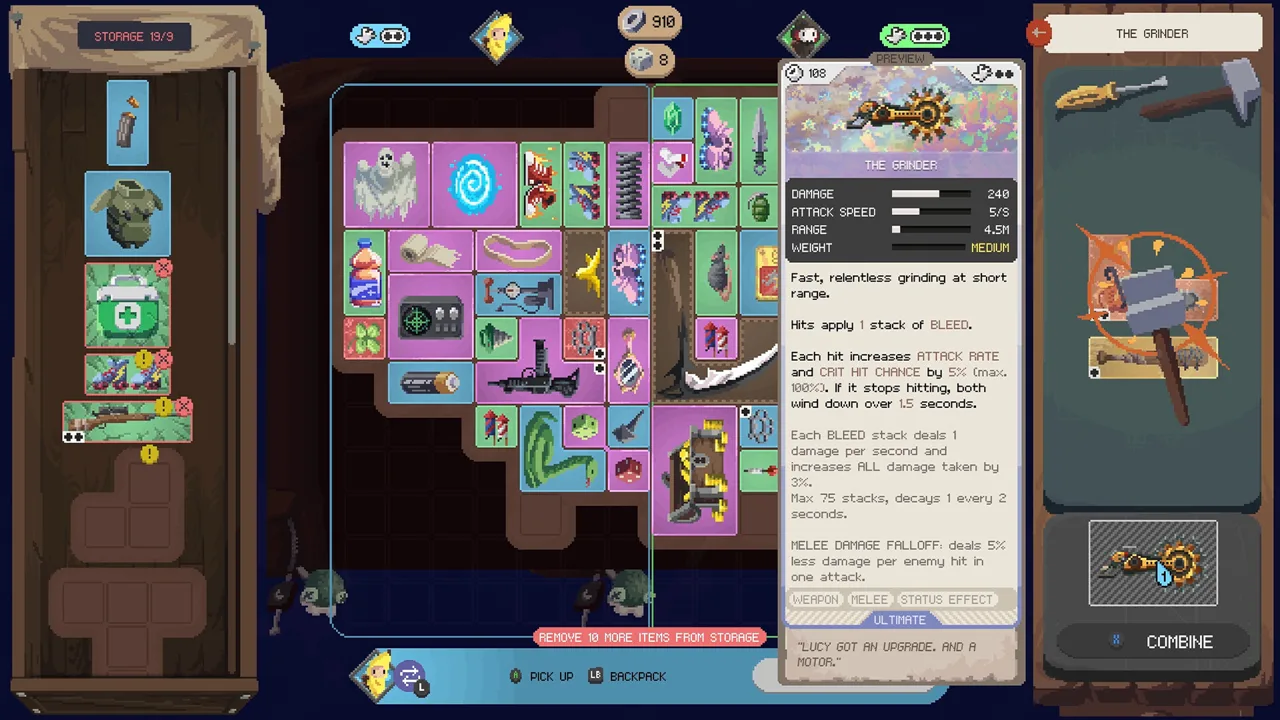 Image: Steam / Pixelsplit
The save locations used for the launch-era transfer were:
| Platform or version | Save location |
|---|---|
| Windows | C:\Users\useraccount\AppData\Local\DDSurvivors\Saved\SaveGames |
| Steam Deck/Linux demo through Proton | /steam/SteamLibrary/steamapps/compatdata/3102400/pfx/drive_c/users/steamuser/AppData/Local/DDSurvivors/Saved/ |
| Steam Deck/Linux full game through Proton | /steam/SteamLibrary/steamapps/compatdata/3026450/pfx/drive_c/users/steamuser/AppData/Local/DDSurvivors/Saved/ |
On Windows, replace useraccount with your Windows account folder. On Steam Deck or Linux, locate your actual Steam library first; the /steam/SteamLibrary/ portion depends on where that library lives.
The important app IDs are 3102400 for the demo and 3026450 for the full game. Under Proton, those separate compatibility folders are central to the manual transfer.
Avoid the other DDSurvivors folder inside steamapps/common/Deadly Days Roadtrip/. For this procedure, use the save location under compatdata.
The full game supports Steam Cloud. Keep an independent local backup before replacing files.
Transfer an Older Demo Save on Steam Deck or Linux
For the September 2025 Proton builds, the manual workaround involved copying the demo's save folder into the full game's compatibility folder.
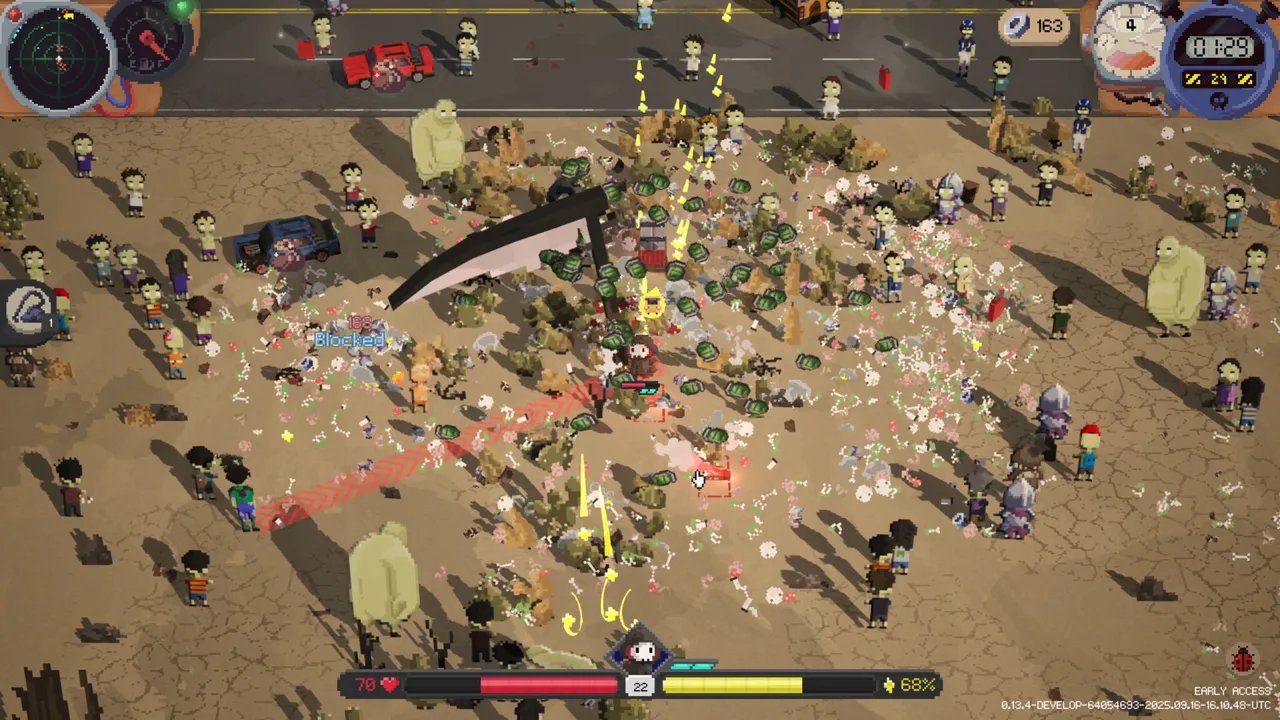 Image: Steam / Pixelsplit
- Open the demo's
DDSurvivorsdirectory undercompatdata/3102400/. - Copy the entire
Savedfolder. - Open the full game's matching
DDSurvivorsdirectory undercompatdata/3026450/. - Paste the copied
Savedfolder there. Preserve any existing destination folder in your backup before replacing its contents. - Open the destination's
Saved/SaveGamesfolder and inspect the save filenames.
The additional filename change used in the successful Linux workaround was:
SaveSlot_0.sav → SaveSlot_DDR_0.sav
Apply that change to the copied file in the full game's destination folder, keeping the original demo file untouched. If a file named SaveSlot_DDR_0.sav already exists, preserve it in your separate backup before replacing it.
Launch the full game and compare your survivor roster, upgrades, and currency with the progress you expected. Check more than whether the save loads: an older save can still open while missing later unlocks.
Keep this filename procedure scoped to the older Proton workaround. On Windows, the same copy-and-rename attempt also failed to restore progress in September 2025.
Handle Missing Characters, Currency, or an Older Save
If your progress looks wrong, preserve both sets of files before making another change. Repeatedly overwriting the same folder makes it harder to recover the starting point.
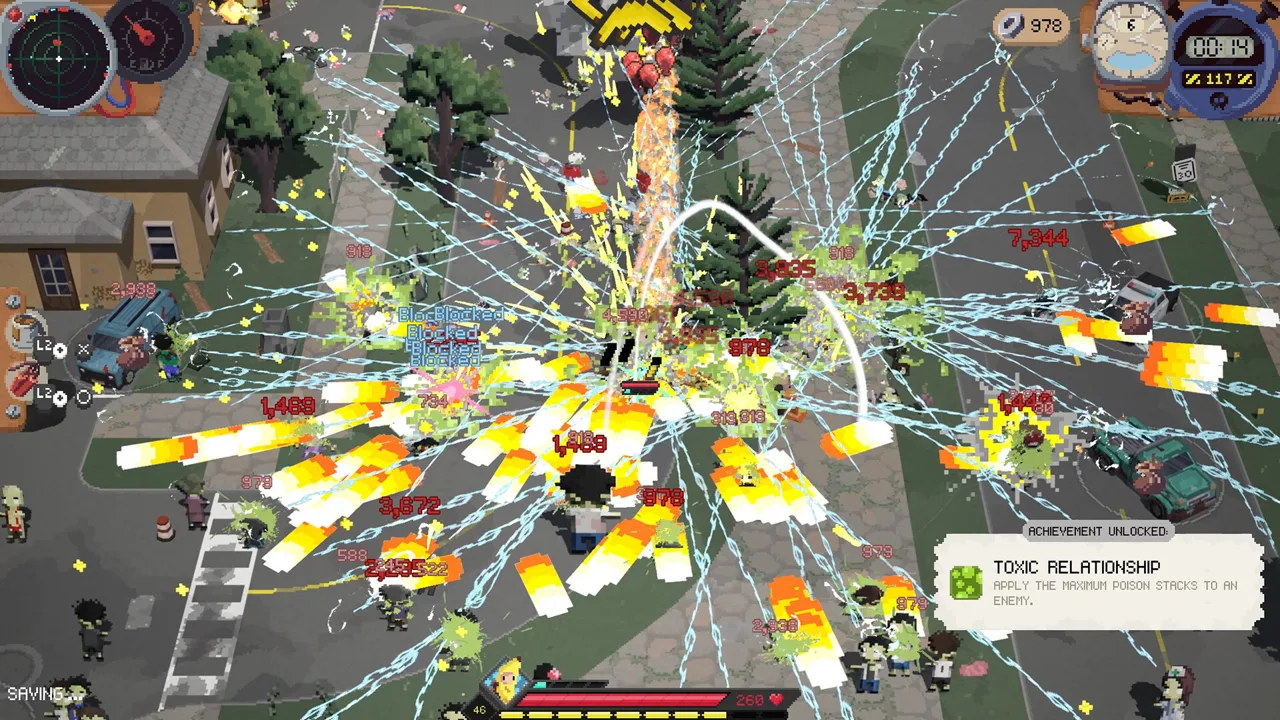 Image: Steam / Pixelsplit
Check these details first:
- Save slot: Update 0.18 introduced multiple save games. Inspect your existing slots before assuming your progress disappeared.
- Destination: On Proton, confirm you copied into
3026450, rather than back into the demo's3102400folder. - Folder nesting: The copied folder should be the destination's
DDSurvivors/Saved, withSaveGamesinside it. - Missing progress: Compare characters, upgrades, apples, and other currencies individually.
For the Banana costume, check the base before replacing saves solely to recover it. Since Update 0.18, the costume becomes findable there after incremental upgrades unlock with your first apple.
Patch 0.16.2 also introduced a backup of the last stable save, temporary-file saving, and automatic recovery when saving encounters errors. Keep your own backup alongside those protections when working with an older demo.
If the save still loads incorrectly, use the in-game bug reporter and include your platform, game version, and exactly which unlocks or currencies are missing. Preserve the untouched backups for further troubleshooting.
Continue with
 Deadly Days: Roadtrip Demo Guide: Downloads and SavesTry the Deadly Days: Roadtrip demo with tips for fuel, backpack builds, and save transfers. Find the Steam download and prepare for your next zombie run.
More in Support

Deadly Days: Roadtrip Co Op: Couch & Remote Play Guide
Deadly Days: Roadtrip co op supports couch play and Steam Remote Play Together with one copy. Learn how shared backpack synergies work and plan your runs.
Deadly Days: Roadtrip Lag: Fix Stutters and Slowdowns
Troubleshoot Deadly Days: Roadtrip lag with controller tests, build adjustments, and the 1.0 performance changes. Find the right fix for your next run.
Deadly Days: Roadtrip Save Location & Save Backups
Deadly Days: Roadtrip save location help for Windows players: learn how automatic backups work, what Steam Cloud offers, and how saves carry over to 1.0.
Continue exploring
Deadly Days: Roadtrip Melee Build: Gear and Synergies
Shape a Deadly Days: Roadtrip melee build with weapon pairings, backpack synergies, movement upgrades, and Vampire tips for surviving close-range fights.
Deadly Days: Roadtrip Sheriff Reload Build: Gear Guide
Deadly Days: Roadtrip sheriff reload build guide: pair revolvers with Sheriff Star, boost attack rate, shorten reloads, and make room for speed upgrades.
Join the community
Official channels for news, updates and player help: